iRacing broadcast setup guide
How to Broadcast an iRacing Race with OBS in 2026
Build an iRacing race production in OBS with overlays, commentary, camera direction, replay control and a rehearsal before going live.
Quick summary
To broadcast an iRacing race you need a Windows PC running iRacing, OBS Studio to capture and stream the session, transparent browser-source overlays for timing and race graphics, and a plan for cameras and replays. Free tools cover the basics. Production software such as EDR Broadcast adds the overlays, camera direction and replay workflow on top.
Learning how to broadcast iRacing is mostly about workflow, not gear. OBS is free, iRacing already gives you spectator and camera access, and modern overlay tools run as browser sources on the same PC. What separates a watchable league broadcast from a messy one is how you set the show up before race night.
Updated 5 September 2026
The setup is current for OBS browser-source workflows in 2026. Platform encoder and bitrate recommendations can change, so verify the current guidance for your streaming destination.
Choose the version of the show you can support
First stream
Use game capture, clean audio, one readable timing source, flags and a standby scene. Record privately before adding replay or remote controls.
Regular league broadcast
Add focused-driver graphics, deliberate camera direction, replay labelling, a grid and results. Write a short run sheet.
Multiclass or endurance event
Add class-aware timing, pit context, incident logging, operator shifts and a tested fallback for every remote role.
What you need before race night
The stack is short. Everything here runs on one Windows PC, although a second monitor makes the job far more comfortable.
Step 1: Set up OBS to capture iRacing
Run iRacing in borderless windowed mode and add it to OBS with a Game Capture source. Game Capture is lighter on the CPU than Display Capture and it will not pick up stray windows if you alt-tab. Set your OBS canvas and output to 1920×1080, then pick an encoder: NVENC on an Nvidia card is the usual choice because it keeps the encoding load off the CPU that iRacing is already using.
Build at least three scenes before you worry about graphics: a starting-soon holding scene, the live race scene, and a break or technical-difficulties scene. Having somewhere safe to cut to buys you time when something goes wrong mid-show.
Step 2: Add broadcast overlays as browser sources
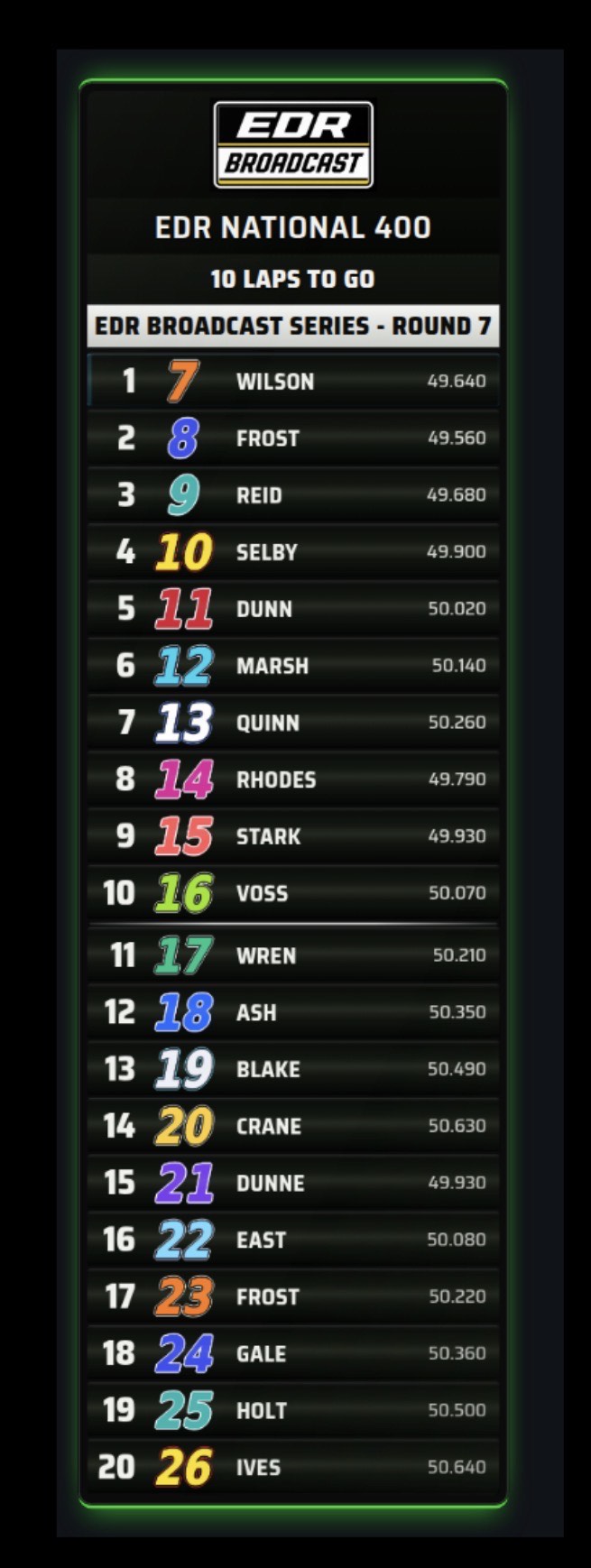
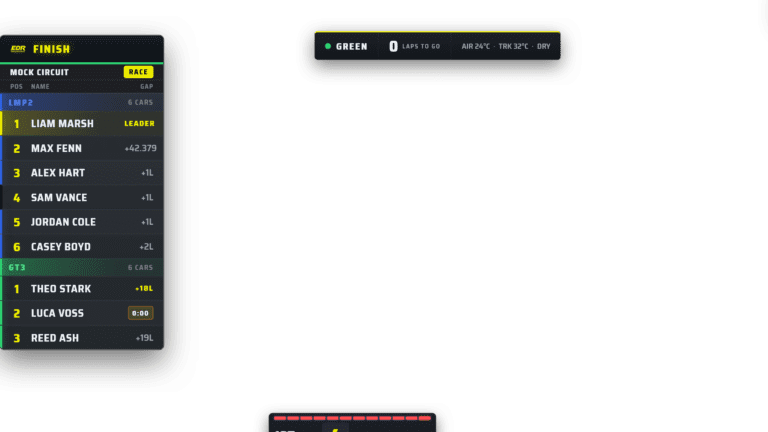
Overlays are what turn a game capture into a race show. In OBS, each overlay is a Browser source pointed at a local URL, sized to the canvas, and layered above the game capture. Because the background is transparent, the leaderboard, flag panel and lower-thirds float over the racing.
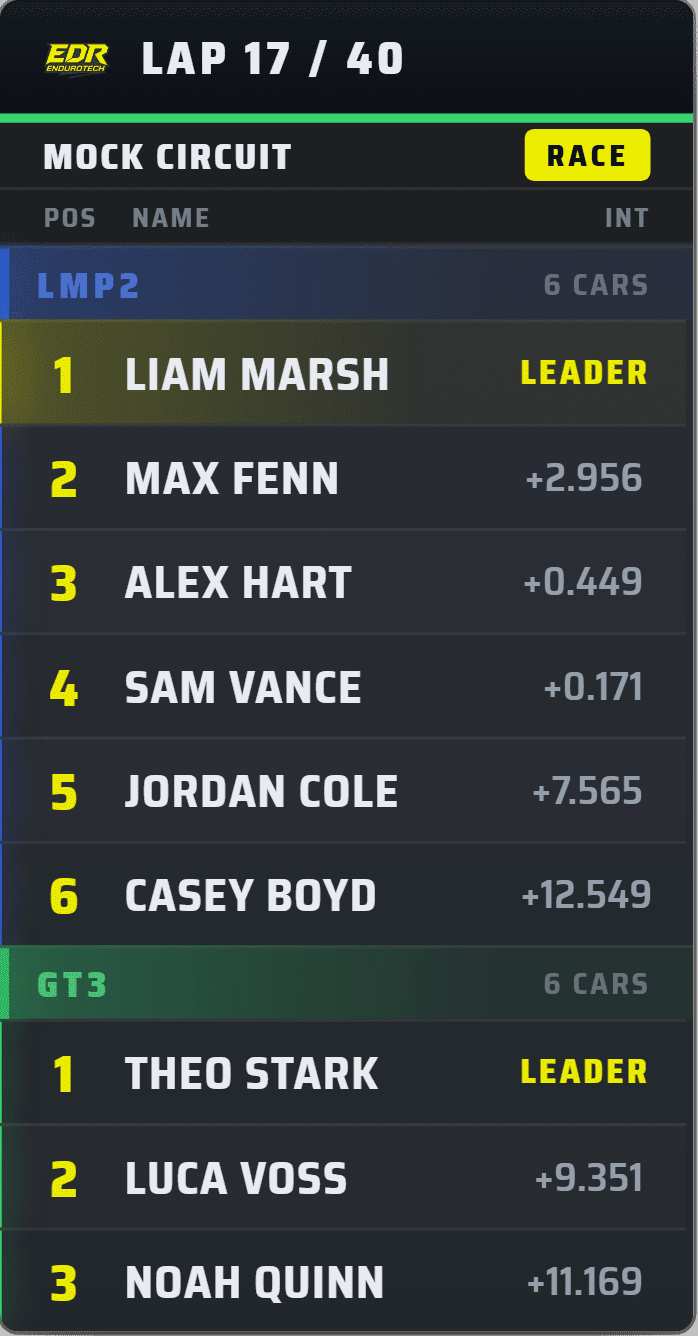
The free tier of EDR Broadcast covers the essentials: a multi-class leaderboard, driver lower-thirds, a standings ticker, flags, a grid intro and a podium graphic, with two themes. Start with the leaderboard and flags only. A clean show with three graphics reads better than a cluttered one with ten.
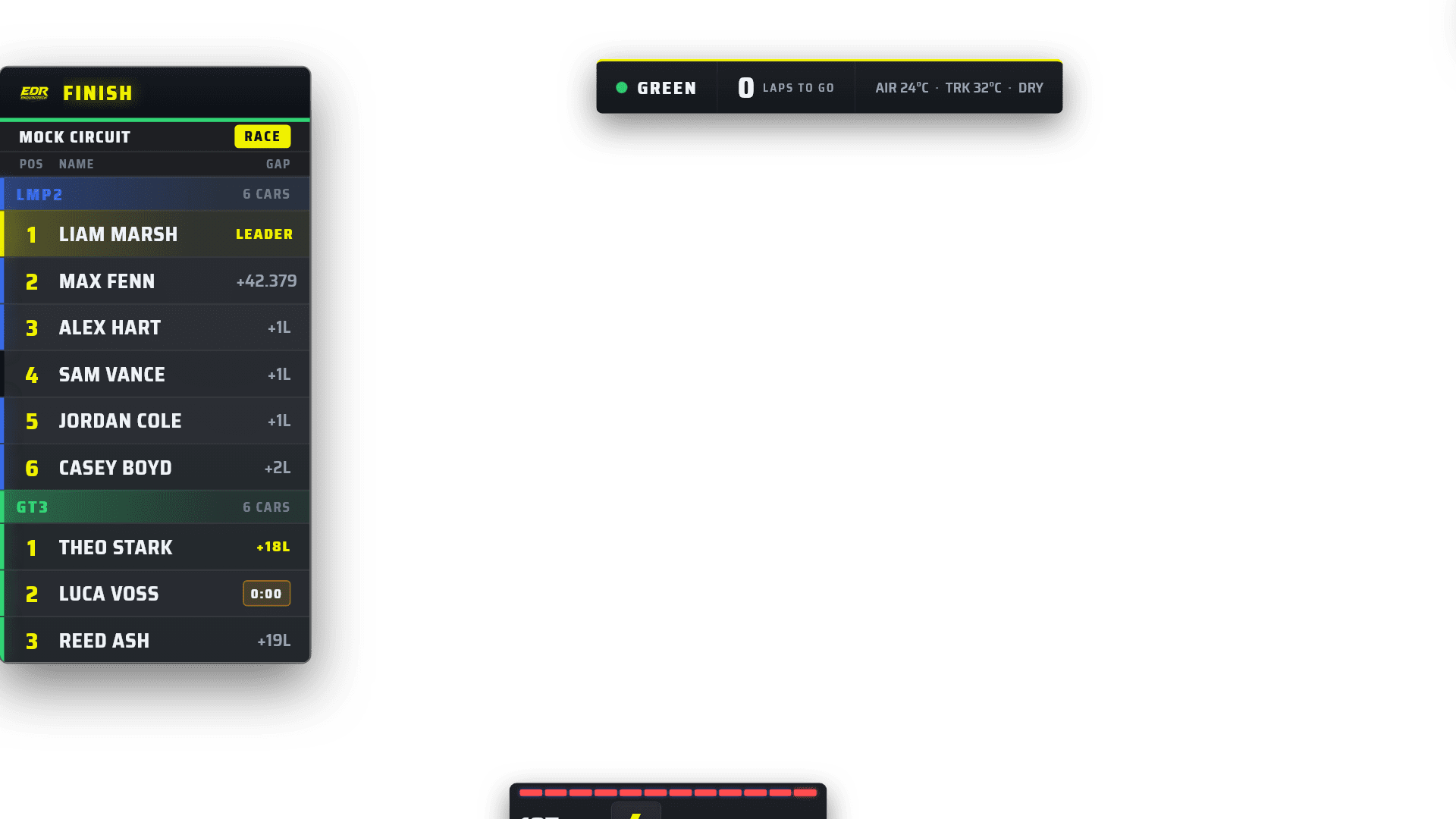
A full overlay layout on the OBS canvas: leaderboard, caution counter and green-flag status bar running together.
Step 3: Plan your cameras
Camera work is the hardest part of an iRacing broadcast and the part viewers judge you on. iRacing gives you TV cams, chase cams, onboards and blimp views for every car, but someone has to decide who to watch and when to cut. On a busy multi-class grid that decision comes up every few seconds, for the entire race.
If you have a dedicated camera operator, brief them on the championship stories before the race. If you are producing solo, this is where an auto-director earns its keep: on EDR Broadcast Pro it watches the whole field, cuts to the battles and lets you take a camera yourself whenever you want the shot.
Step 4: Handle replays and incidents
Replays are the difference between a stream and a broadcast. iRacing provides replay controls so you can revisit a pass or crash and return to the live picture, subject to the replay data available on your PC. Its native incident navigation can help find moments; a timestamped production log adds a clearer workflow for reviewing incident candidates and choosing what to show. We cover that whole workflow in our guide to finding and reviewing incidents on an iRacing broadcast.
Step 5: Run a full dress rehearsal
Join a practice session a few days before the event and run the entire show: overlays live, commentary connected, a test stream to an unlisted channel, and at least one replay pulled and returned cleanly. Watch the encoder stats in OBS for dropped or skipped frames while iRacing is under full load. Every problem you find in rehearsal is a problem your viewers never see.
Race-night rule
If it was not tested in a practice session, it does not go on the live show. New overlay, new scene, new audio source: rehearse it first.
A simple iRacing broadcast stack
Here is how the jobs map to tools, from a free setup to a full league production.
| Job | Free setup | Step up |
|---|---|---|
| Capture and stream | OBS Studio | OBS with a tested hardware encoder, a balanced live audio mix and a scene collection per series |
| Timing and graphics | EDR Broadcast Free: leaderboard, lower-thirds, ticker, flags, podium | EDR Broadcast Pro: 46 overlays, 23 themes, no watermark |
| Camera direction | Manual switching in iRacing | Auto-Director on Pro, with manual override whenever you want the shot |
| Replays and incidents | iRacing replay, driven by hand | Incident detection with a clickable log and replay transport on Pro |
| Viewer live timing | On-screen leaderboard only | Public browser live-timing page on the League plan |
Common OBS mistakes on iRacing broadcasts
EDR Broadcast resources
Start with the main EDR Broadcast page, grab the app from the download page, and see how the tools stack up in the iRacing broadcast tool comparison. If you want help setting up a league broadcast workflow, use the contact page.
Related Endurotech Racing reading
Scale the setup only when needed
Decide whether the show needs one PC or two, use the multiclass production guide, and assign remote crew roles before adding more sources.
Frequently Asked Questions
Do I need a capture card to broadcast iRacing?
No. OBS captures iRacing directly on the same PC, and overlay tools like EDR Broadcast feed OBS through browser sources. A second PC or capture card is optional, not required.
Can I broadcast an iRacing race for free?
Yes. OBS Studio is free and the EDR Broadcast free tier includes the core overlays: leaderboard, lower-thirds, ticker, flags, grid intro and podium, with a small on-air watermark.
What bitrate should I use for iRacing on Twitch?
Use OBS’s streaming Auto-Configuration Wizard and check Twitch’s current settings guidance for your account. Test with a busy field; if motion looks blocky, try a lower output resolution and compare the actual stream.
Do the overlays keep working if my internet drops?
EDR’s local overlay service may remain available, but an internet outage can interrupt iRacing’s live session data as well as the stream and remote features. Treat on-screen timing as potentially stale and switch to your standby scene until the connection and data recover.
Can one person run a whole iRacing league broadcast?
Yes, with the right workflow. Overlays that update themselves, an auto-director on cameras and a replay transport reduce the job to storytelling. Many EDR Broadcast shows run with a single operator.
Does iRacing plus OBS need a powerful PC?
A mid-range gaming PC handles iRacing, OBS and browser-source overlays together, especially with a hardware encoder. If you want to spread the load, the EDR Broadcast League plan supports multi-PC setups.
Ready to run your first iRacing broadcast?
Download EDR Broadcast, drop the free overlays into OBS and put a proper race show on air this weekend. Every Pro feature is free for 14 days.
Download EDR Broadcast View EDR Broadcast