OBS browser source overlays for iRacing
OBS Browser Source Overlays for iRacing: Complete Setup Guide
Add iRacing overlays to OBS using browser sources. Set dimensions, transparency and layer order, then troubleshoot missing graphics and performance.
Quick summary
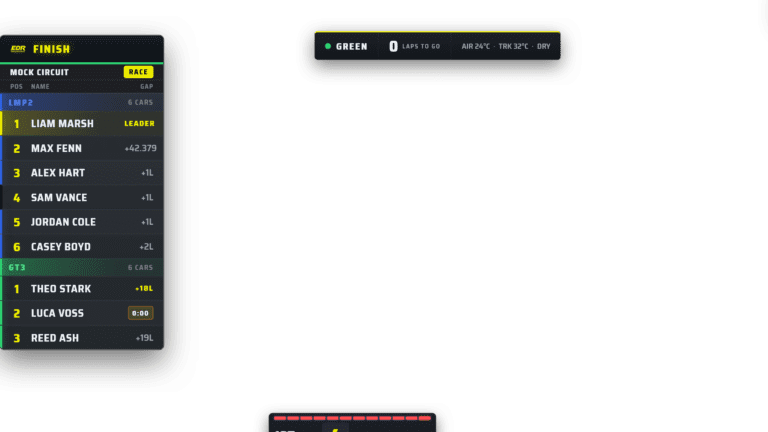
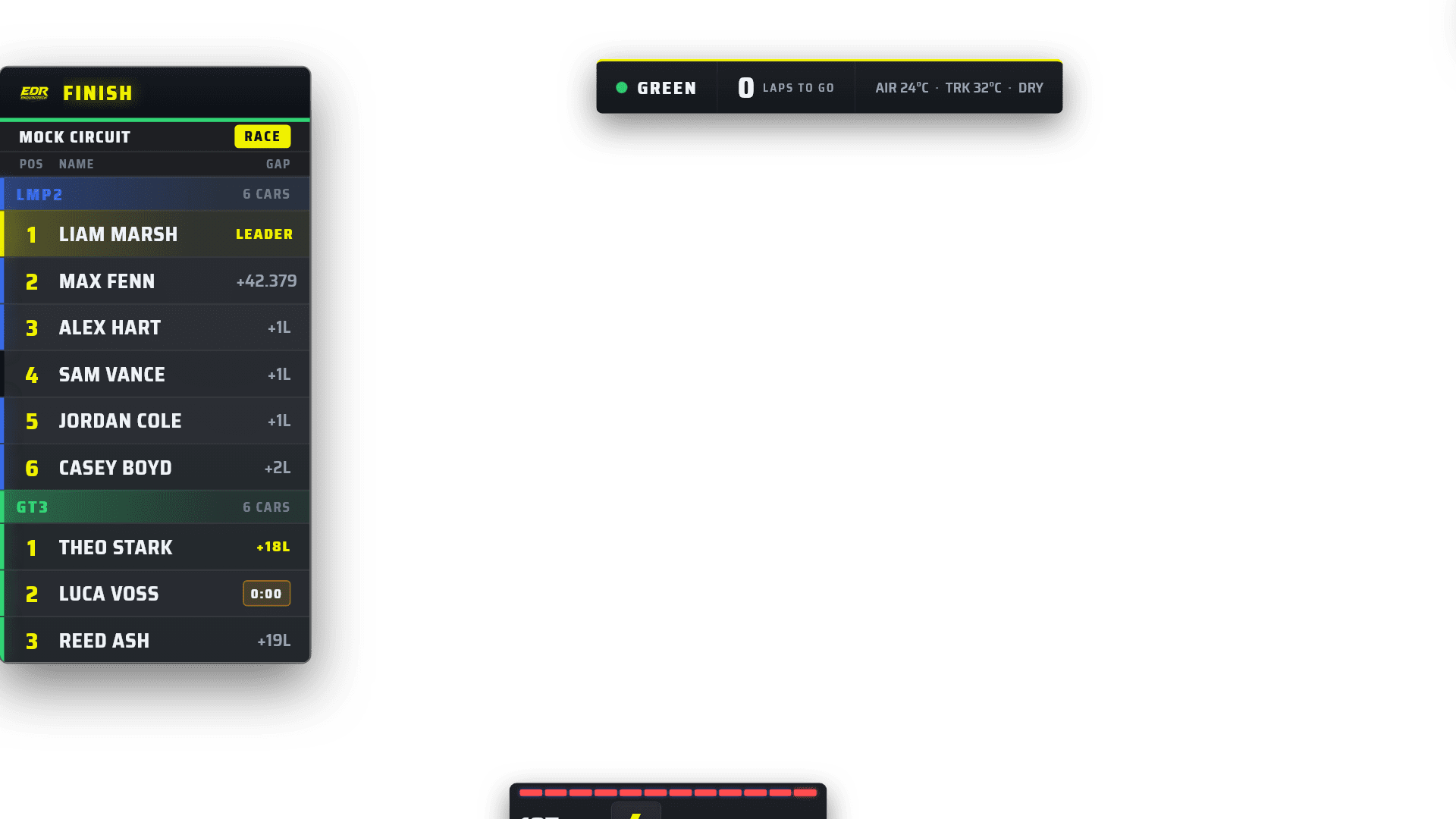
OBS browser source overlays are web-based graphics loaded into OBS as browser sources. For iRacing broadcasts, they are used for timing towers, driver lower thirds, flags, incident notices, starting grids, results, sponsor straps and race-control messages. EDR Broadcast uses browser-source overlays so producers can keep the iRacing capture clean while controlling the race graphics from a dedicated broadcast workflow.
If you are building an iRacing broadcast in OBS, browser sources are one of the first things to understand. They are what let a broadcast app output live graphics into OBS while the simulator remains a clean video source underneath.
Updated 19 July 2026
This guide is current for the 2026 EDR and OBS browser-source workflow. Test your exact OBS version, graphics driver and full scene before race night.
Open the problem you are seeing
The overlay is completely blank
Confirm iRacing is in an active session, the EDR app is connected, the browser URL is correct and the source canvas is not cropped. Refresh only after checking the host state.
The overlay works but text is soft
Use the intended browser canvas size, commonly the same as the OBS canvas, and transform the source instead of stretching a tiny page.
OBS performance drops when all overlays are added
Disable or unload sources not used in the current scene, reduce unnecessary animation and test browser-source load one item at a time.
The overlay is behind the game capture
Move the browser source above the iRacing capture in the OBS source list and confirm the source itself has a transparent background.
What is an OBS browser source?
An OBS browser source is a source type that loads a web page inside an OBS scene. Instead of adding a static image, text layer or video file, OBS can display a live web-based graphic. That makes browser sources ideal for dynamic race overlays that need to change during a session.
For iRacing, a browser source might show the running order, driver name, car class, gap, flag state, fastest lap, incident message, starting grid, results graphic or sponsor panel. The broadcast software controls what the graphic shows, and OBS simply displays the browser source on top of the iRacing feed.
Why browser sources are so useful for iRacing broadcasts
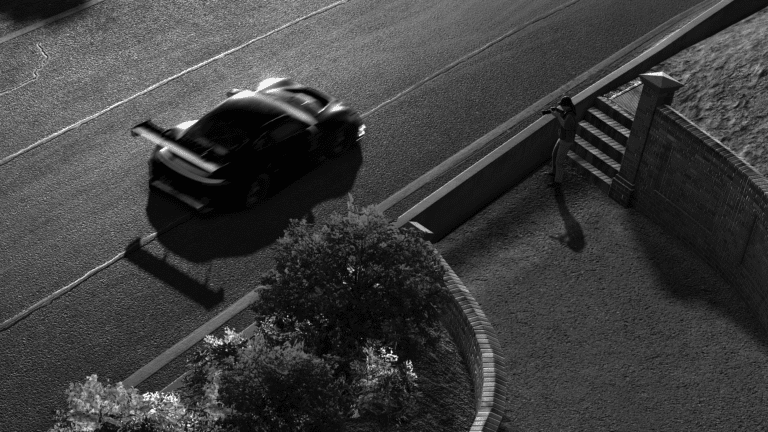
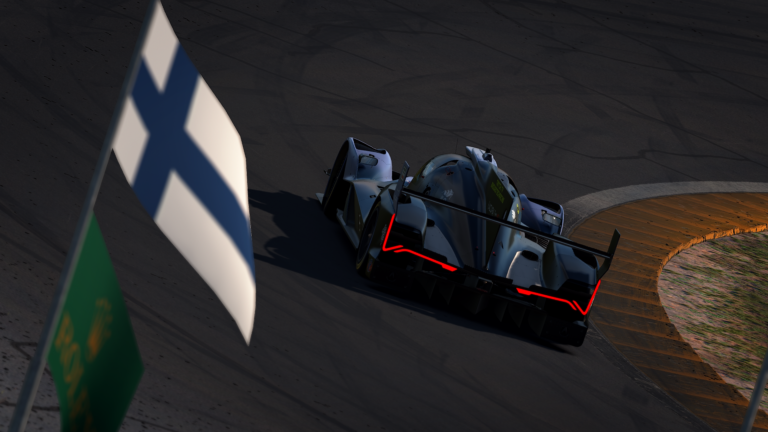
A clean iRacing broadcast normally has two separate layers: the simulator video and the broadcast graphics. The simulator feed should show the car, track and camera angle. The overlay layer should explain the race to the viewer. Browser sources are the bridge between those two parts.
Browser source overlays vs normal OBS sources
OBS has many source types. Game capture or display capture gets iRacing into OBS. Image sources are good for static sponsor logos. Text sources can work for simple labels. Browser sources are different because they can display live, changing web graphics.
| OBS source type | Best use | Broadcast limitation |
|---|---|---|
| Game capture | Capturing the iRacing video feed. | Does not add dynamic broadcast graphics by itself. |
| Image source | Static logos, sponsor marks and background graphics. | Not ideal for live timing or changing race data. |
| Text source | Simple labels and static messages. | Hard to manage for complex timing towers or graphics packages. |
| Browser source | Live overlays, timing, flags, lower thirds, grids, results and race graphics. | Needs correct sizing, layering and performance testing. |
Common iRacing browser source overlays
A proper iRacing broadcast usually needs more than one overlay. The key is not to show everything all the time. The goal is to give the viewer the right information at the right moment.
| Overlay | Purpose | When to use it |
|---|---|---|
| Timing tower | Shows positions, gaps, class colours and driver information. | Most of the race, especially during green-flag running. |
| Lower third | Identifies a driver, team, car, commentator topic or battle. | When the camera cuts to a driver or important race story. |
| Flag banner | Shows green, yellow, checkered or other race states clearly. | At race start, cautions, restarts and finish. |
| Incident notice | Helps viewers understand why the broadcast is moving to a replay or different camera. | When something happens off-camera or needs explanation. |
| Starting grid | Introduces the race and starting order. | Before green flag or during pre-race coverage. |
| Results and podium | Finishes the broadcast with clear final results. | After the race, class results or championship segment. |
| Sponsor strap | Gives sponsor visibility without taking over the stream. | Breaks, caution periods, pre-race, post-race and quieter race moments. |
Recommended OBS browser source setup for iRacing
For most league broadcasts, start simple. Match the browser source size to your OBS canvas, keep the overlay above the iRacing capture, and test the whole scene before race night. A browser source that looks perfect in a preview window can still be too small, too large, cropped or hard to read once it is live on stream.
How to add a browser source overlay in OBS
How to layer iRacing overlays in OBS
Layering matters. If a source is in the wrong order, it may hide the simulator, sit behind the capture, block important racing action or cover another graphic. A simple scene order is usually best.
| Layer order | Source | Example |
|---|---|---|
| Top | Emergency or full-screen graphics | Red flag, replay wipe, full-screen results. |
| Upper overlay | Lower thirds, flags, incident messages | Driver card, safety car banner, penalty message. |
| Main overlay | Timing tower and persistent graphics | Running order, class tower, lap counter. |
| Base | iRacing video capture | Game capture, display capture or spectator PC feed. |
Local browser sources vs hosted browser sources
Some overlay tools run locally on the broadcast PC. Others provide hosted browser links. Both can work, but the production risks are different. Local overlays can be faster and easier to keep inside your own machine, while hosted overlays can make remote workflows and multi-PC setups easier if the service is reliable.
| Type | Strength | Watch out for |
|---|---|---|
| Local browser source | Good for low-latency overlays running on the broadcast PC. | The PC must have enough headroom for iRacing, OBS and overlays. |
| Hosted browser source | Useful for remote workflows, shared links and cloud-supported production. | Needs reliable internet and controlled access to avoid mistakes. |
Performance tips for iRacing browser source overlays
Browser sources are powerful, but a bad overlay setup can still hurt a broadcast. The risk is higher during endurance events because the stream may run for many hours. Test the entire setup while driving or spectating, not just while sitting in an empty session.
Troubleshooting OBS browser source overlays
Most browser-source problems are simple once you know where to look. The common issues are wrong size, wrong layer order, stale browser data, missing transparency, a broken URL or a source that has been accidentally hidden behind the iRacing capture.
| Problem | Likely cause | Fix |
|---|---|---|
| Overlay does not show | Wrong URL, source hidden or source below iRacing capture. | Check the URL, visibility toggle and source order. |
| Overlay is cropped | Browser source width or height is too small. | Set the browser source size to match the overlay or canvas. |
| Overlay has a background box | Overlay is not transparent or wrong theme is selected. | Use a transparent overlay theme or correct browser-source URL. |
| Text is too small | Overlay was designed for a different resolution or scaled down too far. | Use a 1080p-friendly layout and test on a phone-sized preview. |
| Overlay feels laggy | Too many sources, heavy animations or not enough PC headroom. | Simplify sources, reduce animation load and test full production performance. |
Browser sources are not the whole broadcast workflow
Browser-source overlays are important, but they are not the full broadcast. A clean timing tower does not decide which battle to show. A lower third does not run the replay. A flag banner does not manage race-control messages. Good overlays need to sit inside a complete production workflow.
That is why EDR Broadcast connects OBS-ready overlays with broader production tools. The aim is not just to put graphics on screen. The aim is to help run the race show: camera direction, replay workflow, race graphics, sponsor presentation and race-control messaging.
How EDR Broadcast uses browser-source overlays
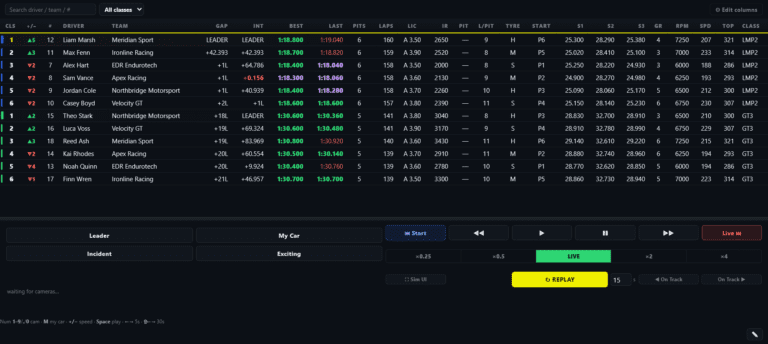
EDR Broadcast is designed around the idea that OBS should handle the stream while the broadcast tool helps run the race show. Browser-source overlays are the output layer. The operator controls the graphics, camera support and race workflow from EDR Broadcast, and OBS displays the visual pieces as browser sources.
For a bigger comparison of tools, read the best iRacing broadcast software guide. For overlay-specific options, read the best iRacing overlay software guide. If you run long races, the iRacing endurance broadcast setup guide explains how overlays, remote control and production shifts fit together.
iRacing OBS overlay checklist
Keep the complete scene stable
Use the PC load test before adding hardware, and choose only the overlays that explain the race.
Frequently Asked Questions
What is an OBS browser source?
An OBS browser source loads a web page inside an OBS scene, which makes it useful for live, dynamic broadcast overlays.
Why use browser sources for iRacing overlays?
Browser sources let timing, flags, lower thirds and race graphics update live while staying separate from the simulator capture.
What size should an OBS browser source be for iRacing?
For a 1080p broadcast, a common starting point is 1920 x 1080 so the browser source matches the OBS canvas. Some overlays may require a different size depending on the design.
Why is my OBS browser source overlay not showing?
The most common causes are a wrong URL, hidden source, incorrect source order, network issue or the browser source being placed behind the iRacing capture.
Can browser source overlays hurt performance?
They can if there are too many sources, heavy animations or not enough PC headroom. Test overlays with iRacing, OBS, audio and replay workflow running together.
Does EDR Broadcast use browser-source overlays?
Yes. EDR Broadcast is built around OBS-friendly browser-source graphics for timing, flags, lower thirds, sponsor graphics and wider race production workflows.
Add cleaner iRacing overlays to OBS
EDR Broadcast gives league producers OBS-ready browser-source overlays connected to a full race production workflow, including timing, flags, lower thirds, replay support, sponsor graphics and race-control messaging.
View EDR BroadcastDownload free for WindowsStart free and activate the 14-day Pro trial inside the app. No card required. Compare plans for remote crew and custom theme features.