iRacing broadcast PC setup 2026
One PC or Two for an iRacing Broadcast?
Compare one-PC and two-PC iRacing broadcast setups. Test OBS rendering, encoder load, browser overlays and capture requirements before expanding.
Short answer
Start with one capable Windows PC running the iRacing spectator client, OBS and your broadcast tools. Move to two PCs only when a recorded dress rehearsal shows simulator, rendering or encoder pressure, or when operational separation is worth the extra complexity.
Reviewed 19 July 2026
This guide avoids a fake universal hardware list. iRacing load changes with resolution, mirrors, rain, car count, replay settings and whether the machine is driving, spectating or running VR. The correct answer comes from your complete scene under race conditions.
Which setup are you actually running?
I only spectate and broadcast from the PC
Try one PC first. A spectator client is normally easier to budget than driving in VR while encoding, but car count, graphics and replay still need testing.
I drive and stream the same race from one PC
Performance margins matter more. Protect simulator frame time first, use a hardware encoder where appropriate and remove unnecessary browser sources before buying another machine.
I drive in VR and want a polished broadcast
A second PC can be justified sooner because VR and the simulator may already consume most rendering headroom. Capture and audio design then become part of the project.
I have remote commentators or a camera helper
Remote crew does not automatically require a second video PC. Browser-based controls and timing can split the work while the host keeps iRacing and OBS local.
My current one-PC stream is stable
Do not add a second PC for status. Spend the effort on rehearsals, audio, replay workflow and backup scenes.
What one PC must run at the same time
iRacing spectator or driver client
The simulator renders the track, field, cameras, mirrors, weather and replay. This is usually the workload you protect first.
OBS rendering and encoding
OBS composites game capture, browser sources, video, audio and alerts, then encodes the output for the platform.
Broadcast data and control
Overlay software reads live iRacing data, renders graphics and may control cameras, incidents, replay and race state.
Communications
Discord, remote commentary, monitoring and talkback can add audio devices, network traffic and operator windows.
Assets and media
Sponsor videos, stingers, music and replay buffers may use storage, decoding and GPU resources.
The Windows desktop
Drivers, antivirus scans, updates and background launchers still share the machine. A clean race profile reduces surprises.
What a second PC actually changes
A two-PC setup can move OBS encoding, media playback and some graphics work away from the iRacing machine. It can also let the stream survive a simulator crash, depending on how the video and data path is designed.
It does not remove complexity. The second machine needs the programme video, game audio, microphone or commentary mix, live data or overlay output, control and monitoring. Every connection creates another place for delay, sync drift or failure.
| Setup | Advantage | New failure points |
|---|---|---|
| Single PC | Simple capture, audio and control; fewer handoffs | Shared CPU, GPU, memory and crash domain |
| Two PCs with capture card | Clear video handoff and dedicated encoder machine | Capture format, refresh rate, audio routing, EDID and sync |
| Two PCs with NDI | Flexible network video and graphics routing | Network capacity, latency, discovery and plugin versions |
| One host plus remote browser crew | Splits operator work without moving the programme video | Internet access, permissions and remote action feedback |
The seven numbers to watch in a dress rehearsal
Browser sources are small until there are twenty of them
Each OBS browser source is a rendered page. Animation, video, large canvas sizes and high source frame rates add load. Sources hidden in another scene may still remain active depending on OBS settings and how the page is configured.
Build an essential scene, then add sources one at a time. Disable or unload graphics that never appear together. A second PC is an expensive way to avoid cleaning up an overloaded scene.
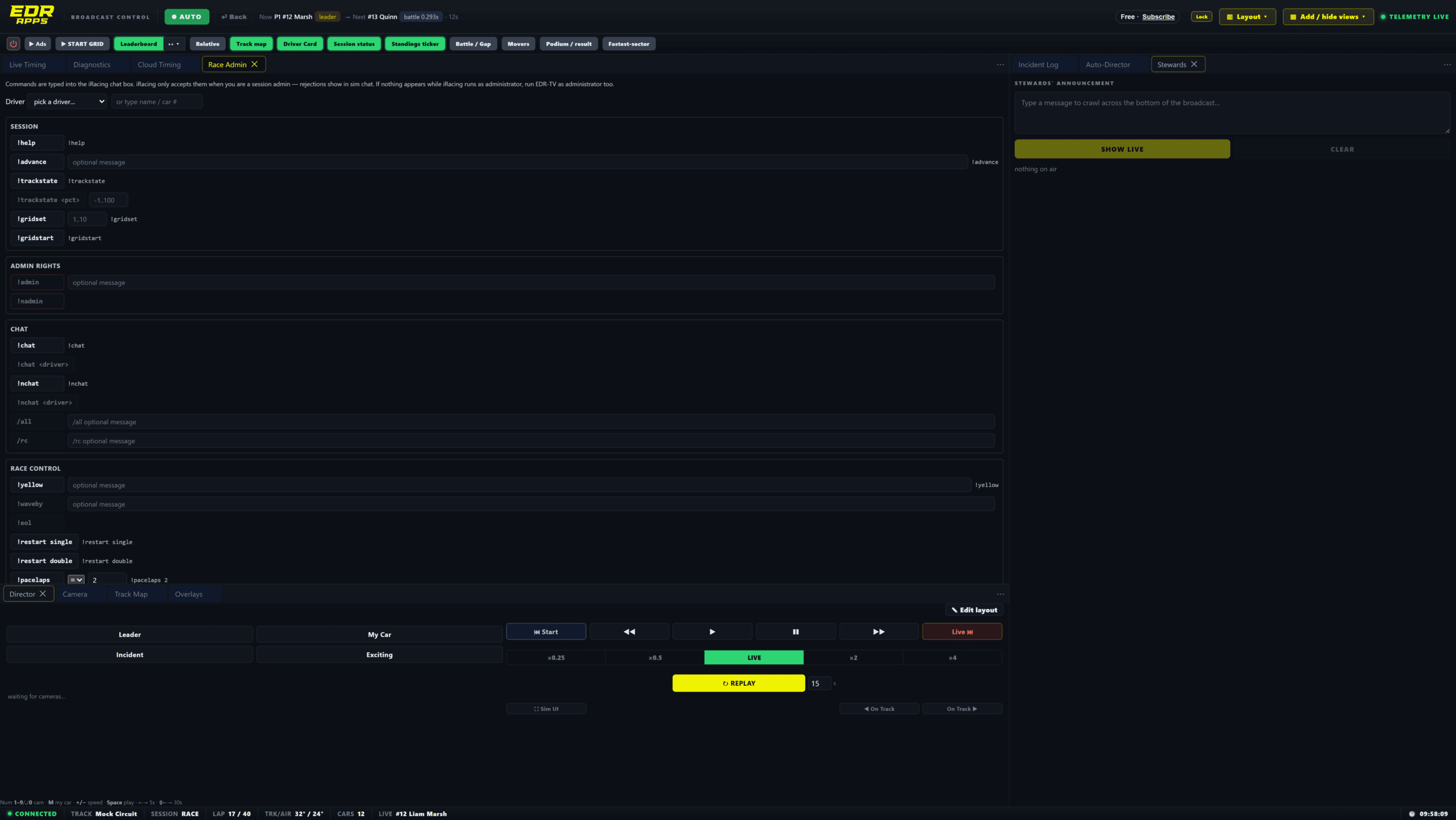
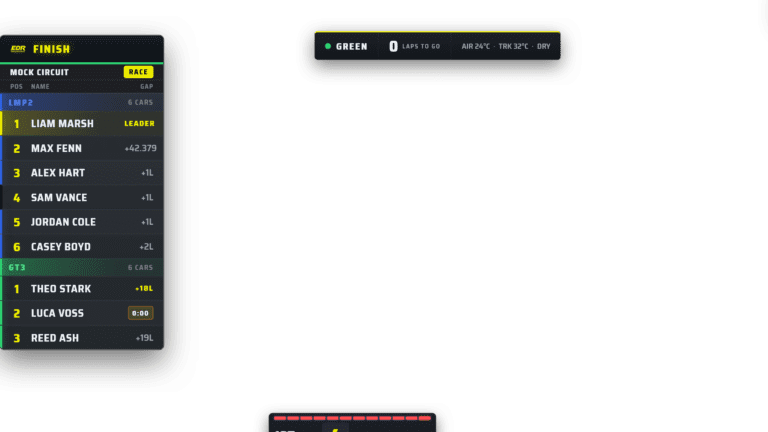
EDR can run beside iRacing and OBS on one Windows PC. The correct capacity still depends on the complete scene and simulator settings.
A repeatable one-PC load test
Use the final broadcast resolution, frame rate, encoder and bitrate. Do not test with a lighter recording profile.
Join a session with the expected field size, classes, weather and graphics settings.
Load every scene, browser source, sponsor video, commentary path and replay feature used on race night.
Record or stream privately for at least one full stint, including pits, replay and camera changes.
Create a failure on purpose: reload an overlay, disconnect a remote controller and restart one non-critical source.
Review OBS statistics and simulator performance, then remove unnecessary load before changing hardware.
Run the same test again. One clean pass is not a reliability result.
When two PCs are worth it
Measured rendering pressure
The single PC cannot maintain the simulator and OBS render targets after reasonable scene and setting changes.
VR or very high-resolution driving
The driving workload already consumes the headroom needed for a stable broadcast.
Operational isolation
The league needs OBS, commentary and sponsor playback to remain live when the spectator client restarts.
Dedicated production crew
A separate operator needs physical control of the programme machine without disturbing the simulator host.
Existing studio infrastructure
The crew already has reliable capture, audio, networking and monitoring, so the second machine does not create an entirely new support problem.
When two PCs are not worth it
Do not add a second PC because another broadcaster has one. If the current system is stable, the likely improvements are better audio, rehearsed replay, clearer graphics and a simpler operator desk.
Do not assume the old spare PC is automatically a good encoder. It may add power, noise, outdated drivers and capture limits while producing a worse stream than the hardware encoder already available on the main machine.
Frequently asked questions
Does EDR Broadcast require a second PC?
No. EDR Broadcast can run beside iRacing and OBS on one Windows PC. Larger productions can add remote crew without moving the programme video.
Do I need a separate iRacing account to broadcast?
iRacing’s official support says broadcasting requires a separate iRacing account used to access the camera view. Check current iRacing event and broadcast rules for your use case.
Is NDI better than a capture card?
Neither is universal. NDI is flexible and network-based. A capture card creates a clear video handoff. Compare latency, quality, audio, network and support in your actual setup.
Will a second PC fix dropped network frames?
Not if the cause is the internet path to the streaming service. Separate OBS render, encoder and network statistics before buying hardware.
What OBS settings should I use?
Use the current recommendations for your streaming platform and encoder, then validate them under the full iRacing scene. This guide focuses on architecture because settings change with hardware and destination.
Can remote commentators reduce host-PC load?
They can reduce operator workload, but audio and return-video methods still consume network and may use encoding. Measure the full commentary path.
Build the production before buying the second machine
Use the complete OBS setup guide, add only the essential overlays, then test the full endurance workflow for the length of a real stint.
Test EDR on the PC you already own
Build a duplicate OBS scene, run a private full-stint test and decide from measured headroom. The Free plan remains available if you do not need Pro production tools.
Download Free Build the First Scene